How to choose the right Cypress plugins for your project
By Jennifer Shehane
You need your tests to do something Cypress doesn’t do on its own, such as waiting for a sign-up email or comparing a screenshot against an approved baseline. A search turns up several plugins that claim to handle it, and integrating the plugin only takes a few minutes. Finding out you integrated the wrong one takes longer, because the problems rarely show up on the day you install it. They show up when a CI job ignores your tag filter and runs the whole suite, or when the plugin blocks your next Cypress upgrade, or when Cypress runs slower until you disable that one plugin.
Integrating a plugin only takes a few minutes. Finding out you integrated the wrong one takes longer.
A Cypress plugin is a package that adds functionality to your Cypress test suite: custom commands, a preprocessor, visual or accessibility checks, a CI integration, or a reporter. Most are npm packages that you install and update separately from Cypress, so each one is a dependency your team maintains. Cypress doesn’t formally review vendor or community plugins, so you decide what goes into your suite.
The Cypress plugin directory helps with that choice. It groups official, vendor, and community plugins by where they fit in your test suite, and each card shows who maintains the plugin, when it last published, and which Cypress versions it declares support for. Those signals, plus a few questions about your own project, tell you whether a plugin belongs in your suite before you install it.
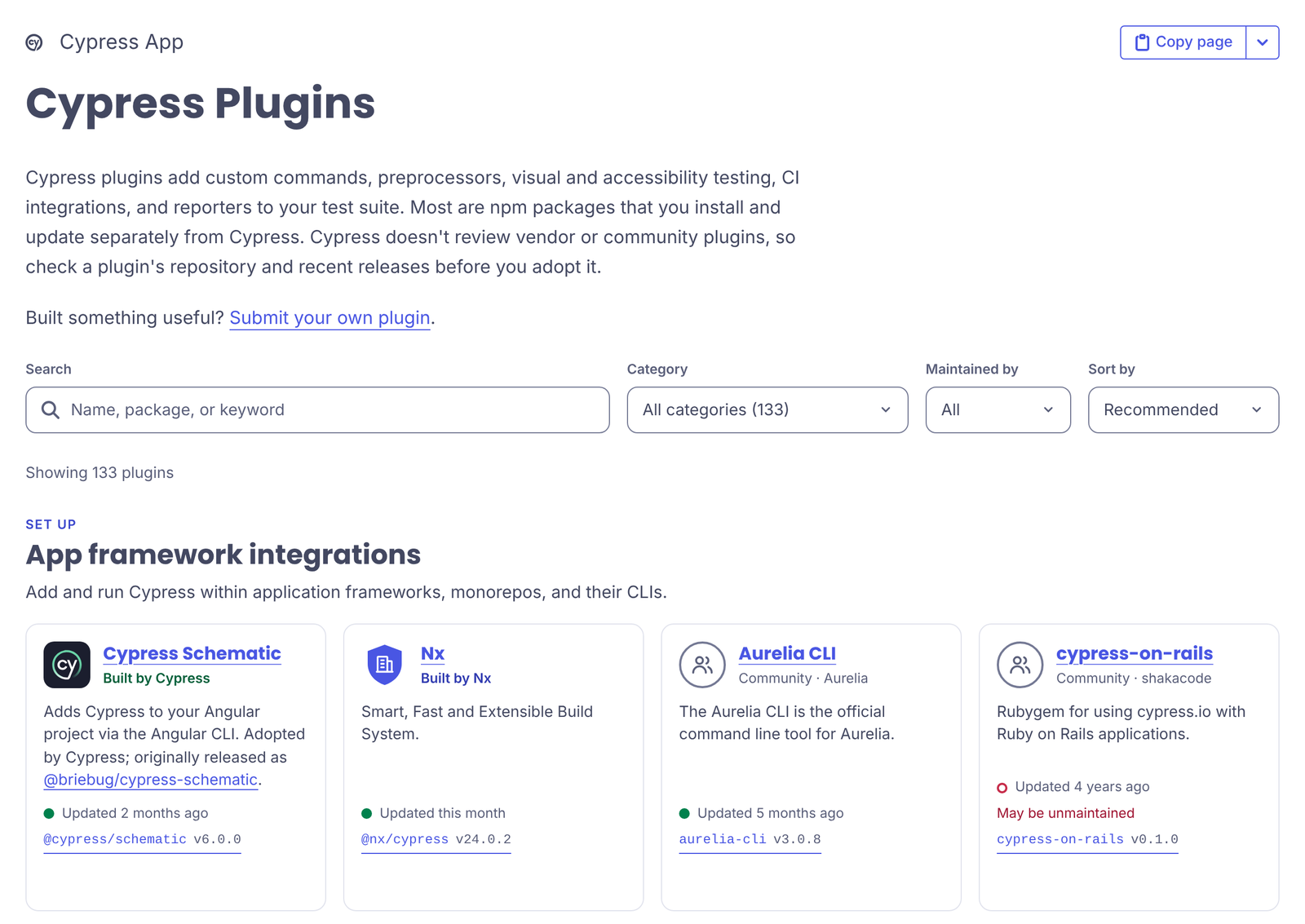
Not every entry in the directory is an npm plugin. Its AI tooling category lists Cypress AI Skills, which help AI coding assistants write, explain, and fix Cypress tests, and the Cloud MCP server, which gives those assistants your Cypress Cloud test data. The directory also lists CI integrations such as the CircleCI orb, the Cypress GitHub Action, Docker images, editor extensions, and Cypress Cloud features. Each of these sets up in its own way, so follow its linked docs. The npm-specific advice in this post, such as peer ranges and setupNodeEvents, applies to the npm packages.
Start with where a Cypress plugin fits in your test suite
The directory sorts its categories into five stages. The stage tells you what a plugin touches once it’s installed.
Stage | Directory categories | What plugins in this stage change |
|---|---|---|
Set up | App framework integrations, Component testing, Preprocessors | How Cypress is configured to your project and how specs are bundled |
Write | AI tooling, Custom commands, Developer tooling, Test data & fixtures, User interactions | The code in your specs and support file |
Run | Authentication & security, Databases & storage, Email & SMS, Network & API testing, Test selection & execution | What a test can reach while it runs, and which tests run |
Check | Accessibility, Performance, Visual testing | What a test checks beyond functional behavior |
Report & ship | Continuous integration & parallelization, Coverage & reporting | Your CI pipeline and the reports your team reads |
The stage also hints at what a plugin costs to remove later. A reporter usually lives in one place, so replacing it is a configuration change. A plugin that adds commands, like a drag-and-drop helper or an inbox command for email tests, spreads into every spec that calls those commands, and replacing it means editing each of those specs.
Check whether Cypress already does what you need
Several jobs that once called for a plugin are now built into Cypress, and some official entries in the directory already ship inside the cypress package.
If you need to | Cypress already includes |
|---|---|
Press Tab and other single keys as native keyboard events |
|
Find elements by ARIA role and accessible name |
|
Log in once and reuse the session across tests | |
Stub network responses or call an API directly | |
Re-run failed tests automatically | |
Mount React, Vue, Angular, or Svelte components |
|
A plugin is still the right choice when it does something Cypress doesn’t, such as sending screenshots to a visual review service or creating a disposable inbox for each test run.
If you record your runs to Cypress Cloud, some plugins in the directory do work that you already get with your account.
If you need to | Cypress Cloud includes |
|---|---|
Split specs across CI machines | Parallelization with load balancing, which assigns specs by their recorded durations so you don’t maintain spec lists |
Stop a run after the first failure | Auto Cancellation, which cancels the whole run across every machine once failures reach a threshold you set |
Re-run only what failed | Re-run optimization, which skips the specs or tests that already passed when you re-run a failed CI job, and Spec Prioritization, which runs the previously failed specs first |
Capture browser console logs or network traffic to debug CI failures | Test Replay, which records the DOM, network requests, and console logs of each test in CI so you can replay a failure |
Read the signals on each Cypress plugin card
Each card pairs a maintainer label with signals from npm. Hover over or focus a card to see the Cypress app version range it supports, and use the “Maintained by” filter to narrow the list to official, vendor, or community plugins.
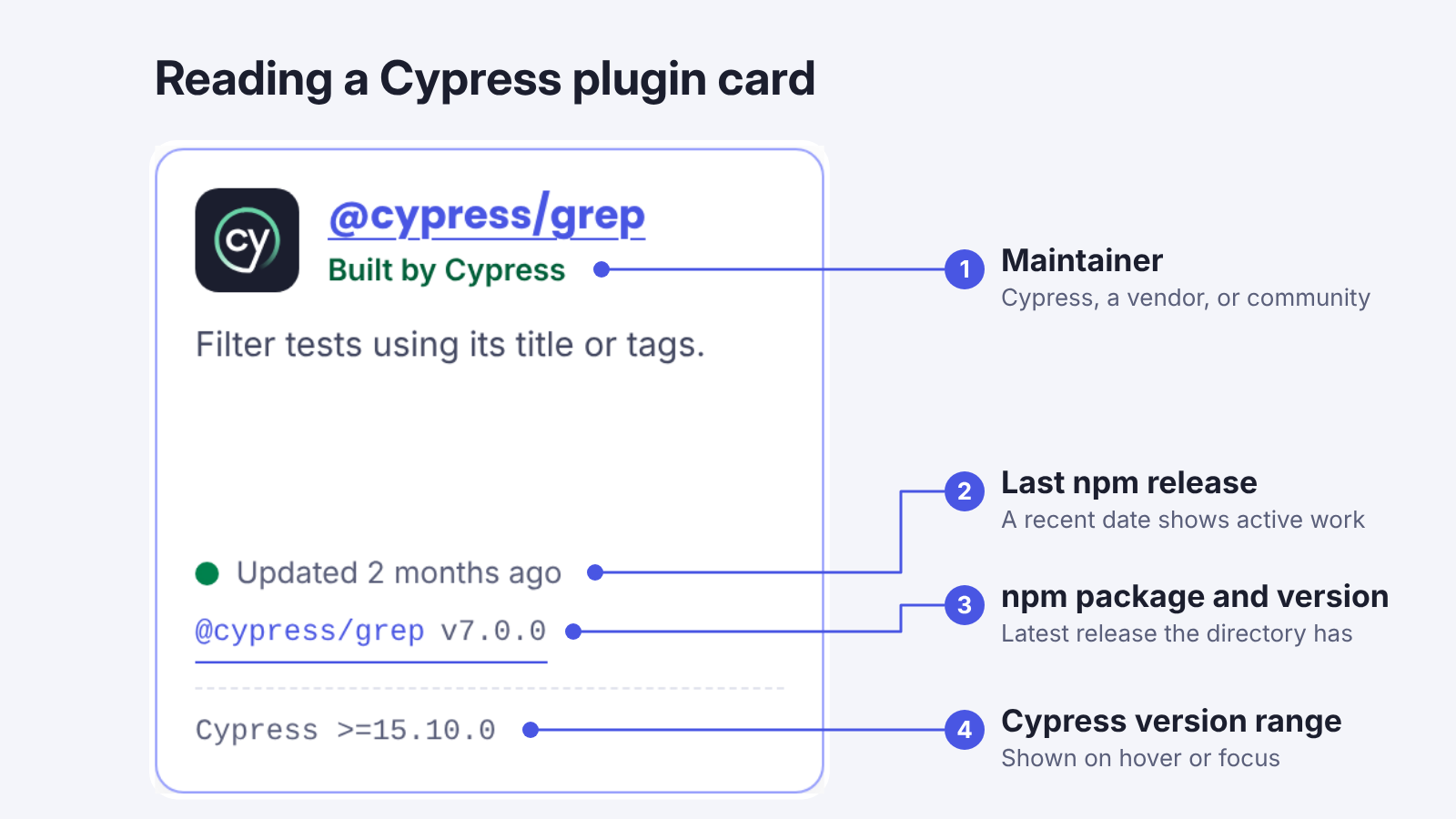
Signal on the card | What it tells you |
|---|---|
Built by Cypress | An official plugin that the Cypress team owns and maintains |
Built by company | A vendor plugin, owned by the company behind the product it connects to |
Community · name | An independent author, usually the owner of the plugin’s repository |
Updated date and npm version | The latest release the directory has recorded, and when it was published to npm |
Cypress version range | The Cypress versions the package names as supported |
Deprecated | The npm package was unpublished or marked deprecated, or its repository was archived |
To check a Cypress plugin’s peer range, ask npm:
npm view @cypress/grep peerDependencies.cypress
# >=15.10.0
If the command prints nothing, the plugin doesn’t declare a Cypress peer version range.
A recent publish date shows that someone is working on the plugin, but an older date isn’t automatically a problem. A small plugin that does one job may not need frequent releases. What matters more is whether its range includes the Cypress version you run, and how its maintainers respond to issues.
To have a Cypress plugin included in the directory, Cypress maintainers ask plugin authors for tests around the functionality, clear documentation, and support for at least the latest Cypress version.
Questions to answer before you install a Cypress plugin
The card tells you about the plugin. These questions are about your project, and the plugin’s README usually answers them.
- Does its range include the Cypress version you run, and the next major version you plan to move to? A plugin that supports only your current major can hold back your next upgrade.
- Does it support every testing type you use? End-to-end and component tests each have their own support file and their own
setupNodeEvents, and some plugins document only one of them. - Does it run in every browser you test in? Plugins built on the Chrome DevTools Protocol (CDP), the automation interface that Chromium-based browsers expose, run only in those browsers, such as Chrome, Chromium, and Edge. The
cypress-real-eventsREADME, for example, notes that Firefox isn’t supported. - What will it do with your data? Code in
setupNodeEventsruns in Node with access to your file system, network, and environment variables. Plugins that connect to a hosted service, such as a visual review platform, send test artifacts like screenshots or page snapshots to that service, so check that against your data-handling requirements. Keep any sensitive credentials the plugin needs inenv, which stays in the Node process and which tests read withcy.env(), rather than inCypress.expose()values, which are readable in the browser. - Who on your team will own it? Someone needs to read its release notes and test it before each Cypress upgrade. Name that person before you install.
Run Cypress plugins through your standard security review
A Cypress plugin is third-party code that runs in your pipeline, so send it through the same security review as any other dependency. Being listed in the directory isn’t a security review, and installing a plugin as a dev dependency doesn’t limit what it can reach.
Keep the review in force after the plugin is in your suite:
- Scan dev dependencies. When
npm auditruns with--omit=dev, or withNODE_ENV=productionset, npm leaves dev dependencies out of the report, and your Cypress plugins with them. - Install from your lockfile in CI with
npm ci, so the versions that passed review are the versions that run. - Give the Cypress job only the secrets it needs, and run tests with test accounts and non-production data.
How to integrate a Cypress plugin, step by step
Installing a plugin isn’t enough on its own. You also need to register it with Cypress, in one or two places, depending on where its code needs to run:
- Register code that runs in Node in
setupNodeEventsin your Cypress configuration. That covers preprocessors, browser launch handling, tasks, and anything that touches the file system or test results. - Register code that runs in the browser alongside your tests and your application in your support file. That covers custom commands, assertion libraries, and overrides of built-in behavior. The support file loads before every spec:
cypress/support/e2e.jsfor end-to-end tests andcypress/support/component.jsfor component tests.
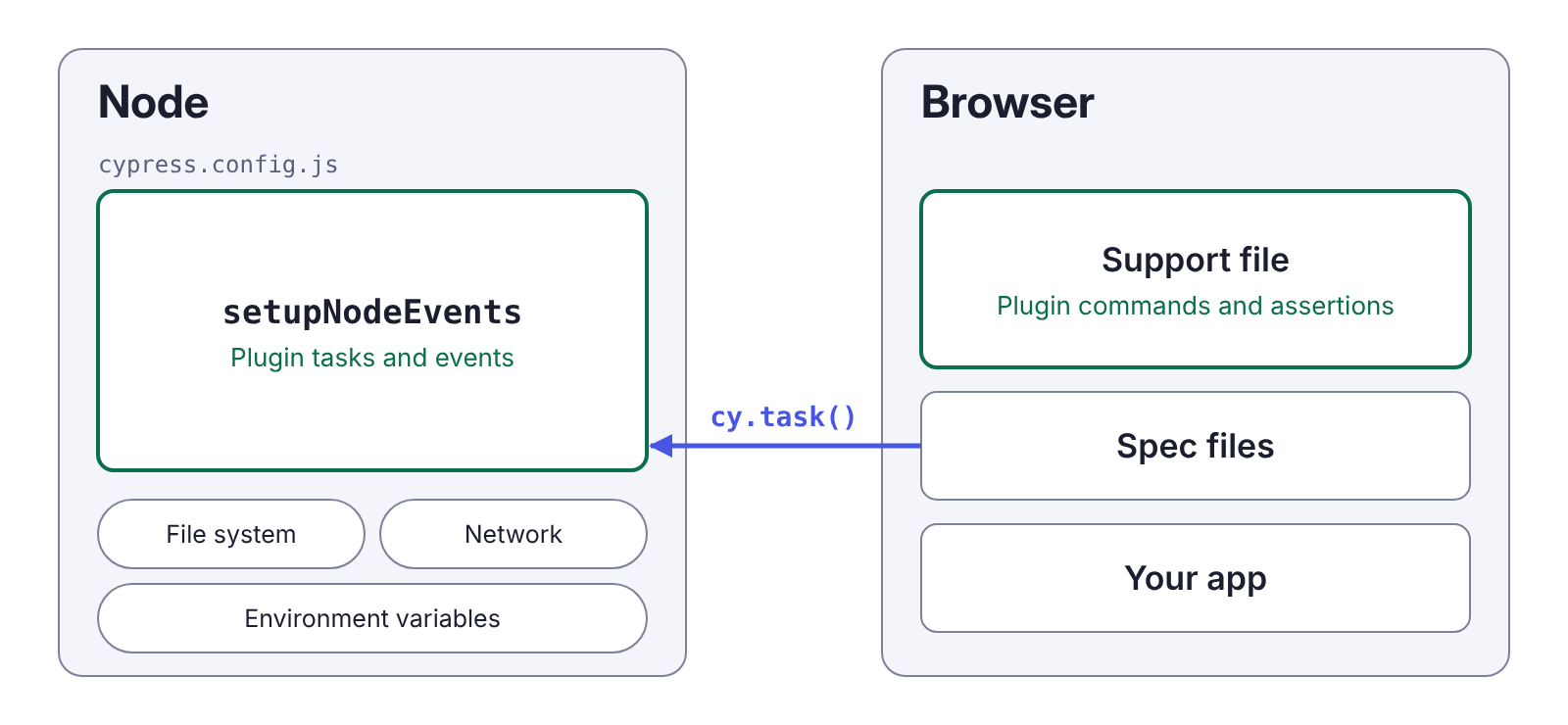
Plugins with code on both sides need both registrations. The steps below use @cypress/grep, an official plugin that filters tests by title or tag and registers in both places.
Step 1: Check the plugin’s README and Cypress range
Read the README for its registration steps, and confirm the declared range includes the Cypress version you run. @cypress/grep 7.0.0 declares >=15.10.0.
Step 2: Install a Cypress plugin as a dev dependency
npm install --save-dev @cypress/grepThe Use plugins guide has the equivalent Yarn, pnpm, and Bun commands.
Step 3: Register the Node side in setupNodeEvents
Call the plugin’s setup function inside setupNodeEvents, then return config so any changes the plugin makes take effect. For @cypress/grep, the Node side is optional: it skips spec files with no matching tests when you pass grepFilterSpecs=true.
// cypress.config.js
const { defineConfig } = require('cypress')
const { plugin: cypressGrepPlugin } = require('@cypress/grep/plugin')

module.exports = defineConfig({
  e2e: {
    setupNodeEvents(on, config) {
      cypressGrepPlugin(config)

      // Return config so the plugin's changes take effect
      return config
    },
  },
})
If you also run component tests, register the plugin in component.setupNodeEvents too.
Step 4: Register the browser side in the support file
// cypress/support/e2e.js
import { register as registerCypressGrep } from '@cypress/grep'

registerCypressGrep()
For component tests, add the same lines to cypress/support/component.js.
Step 5: Add a Cypress plugin’s TypeScript types
@cypress/grep ships its own type definitions, which TypeScript usually detects. Plugins that add commands often ask you to list their package in the types array of your Cypress tsconfig.json, next to cypress:
{
  "compilerOptions": {
    "types": ["cypress", "@cypress/grep"]
  }
}
Step 6: Verify a Cypress plugin locally, then in CI
Run a filtered set of tests from the command line:
npx cypress run --expose grep="login"Only tests with “login” in their title run, and the rest show as pending. If you use cypress open, restart it after changing your configuration file. Then run the same command in CI, in every browser your pipeline uses, since several of the gotchas below appear only in CI.
Common Cypress plugin gotchas and how to fix them
Only half of a Cypress plugin is registered
A plugin with code on both sides fails in a different way depending on which half is missing. A plugin registered only for end-to-end tests is also missing from component tests.
What you see | Cause | Fix |
|---|---|---|
| The support file for the testing type you’re running doesn’t import the plugin | Import the plugin in |
|
| Register the plugin in |
| Browser code is registered in | Move that registration to your support file |
Cypress plugin settings are lost without return config
Many plugins pass settings to their browser code by modifying the config object. If setupNodeEvents doesn’t return that object, Cypress discards the changes without an error. @cypress/code-coverage, for example, sets a flag in config to tell its support file that its tasks are registered. Without return config, the flag never reaches the browser, so the support file logs Code coverage tasks were not registered by the plugins file, skips collecting coverage, and the run still passes.
setupNodeEvents(on, config) {
  require('@cypress/code-coverage/task')(on, config)

  // Without this line, the run collects no coverage
  return config
},
If a plugin’s setup function returns a promise, make setupNodeEvents async and await the setup call before you return config.
A plugin ignores CYPRESS_* environment variables in CI
Cypress 15.10.0 introduced Cypress.expose() for non-sensitive values that tests read in the browser, along with cy.env() for sensitive ones, and Cypress 16 removed Cypress.env(). Many plugins updated for these APIs, including @cypress/grep, read their options from expose. CYPRESS_* environment variables populate env only, so a plugin that reads expose never sees them, and nothing errors. With @cypress/grep, a CYPRESS_grepTags variable set in CI is ignored, and the run includes every test.
Pass plugin options with --expose instead:
npx cypress run --expose grepTags="@smoke"If your CI has to keep setting CYPRESS_* variables, copy each key into config.expose before you register the plugin that reads it:
setupNodeEvents(on, config) {
  // Copy CI values from env into expose before the plugin reads them
  if (config.env.grepTags !== undefined) {
    config.expose.grepTags = config.env.grepTags
  }

  cypressGrepPlugin(config)

  return config
},
The migration guide covers this pattern in more detail.
npm install fails with ERESOLVE after a Cypress upgrade
npm 7 and later checks peer dependencies when you install. If a plugin’s peerDependencies range stops at an earlier major, installing a newer Cypress next to it fails:
npm error code ERESOLVE
npm error ERESOLVE unable to resolve dependency tree
npm error Found: [email protected]
npm error Could not resolve dependency:
npm error peer cypress@"^10 || ^11 || ^12 || ^13 || ^14 || ^15" from <plugin>@<version>
Update the plugin to a version whose range includes the new major. If no such version exists yet, keep Cypress on its current major until one ships, and check the plugin’s repository for an issue that tracks support.
A Cypress plugin works in Chrome but fails in Firefox
Plugins built on CDP can’t run outside Chromium-based browsers. If your pipeline also runs Firefox or WebKit, limit the tests that use those plugins to Chromium with the browser test configuration option, as shown in running specific tests by browser:
describe('product card hover states', { browser: { family: 'chromium' } }, () => {
  it('shows the quick-add button on hover', () => {
    cy.visit('/products')
    cy.get('[data-cy=product-card]').first().realHover()
    cy.get('[data-cy=quick-add]').should('be.visible')
  })
})
Cypress skips these tests in other browsers, so keep at least one Chromium-based browser in your CI matrix.
A Cypress plugin slows down every spec in your suite
Cypress bundles your support file before each spec, so everything it imports adds startup time to every spec in the run. A plugin imported there is paid for on every spec, even in specs that never call its commands. A plugin can also pull Node-only modules, such as a database driver, into the browser bundle, which adds polyfills or breaks the build. The test performance guide shows how to keep support files lean.
To find a slow plugin, comment out its registration in the support file and setupNodeEvents, then compare the run’s duration with and without it. To fix one:
- Move Node-only work into
cy.task(), so it runs insetupNodeEventsinstead of in the browser bundle. - Use the plugin’s own performance options. Without
grepFilterSpecs,@cypress/grepcompiles every spec before it filters, even specs with no matching tests. - If a plugin only adds commands that a few specs use, import it in those specs instead of in the support file. Cypress bundles each spec separately, so specs that don’t import it skip its cost. Keep plugins that register global hooks, such as code coverage or test filtering, in the support file, because they need to run for every spec.
If the slowdown comes from the plugin itself, open an issue on its repository so the maintainer can fix it for every team that uses it. Include your Cypress and plugin versions, run times with and without the plugin, and a minimal reproduction.
TypeScript can’t find a Cypress plugin’s commands
Many plugins that add commands ship type definitions for them, but TypeScript uses those definitions only once your project includes them. Until then, the compiler reports an error like this one:
error TS2339: Property 'realClick' does not exist on type 'Chainable<JQuery<HTMLElement>>'.Add the package to the types array in your Cypress tsconfig.json, as in Step 5.
Keep Cypress plugins working through upgrades
A Cypress upgrade is when a plugin’s declared range and your installed version are most likely to drift apart. Cypress 16 is a recent example: it removed Cypress.env(), so plugins that still call it throw errors. The migration guide lists the plugin versions that moved to the new APIs, with the configuration change each one needs.
Before each upgrade:
- Compare each plugin’s declared range with the version you’re moving to, on its directory card or with
npm view <package> peerDependencies.cypress. - Read the migration guide and the changelog for the new version. Search both for the plugins you use and for the APIs they call or overwrite. Cypress 16, for example, removed
cy.exec(), andcy.getCookie()and the other cookie and storage getters no longer acceptCypress.Commands.overwrite(). - Update each plugin to a version that supports the Cypress version you’re moving to.
- Upgrade on a branch, and run the full suite in CI in every browser and testing type you use.
If a test fails after the upgrade, find out which side owns the problem before you report it. Comment out the plugin’s registration in setupNodeEvents and the support file, then run the failing command or test again. If it still fails, the plugin isn’t the cause, so start with the troubleshooting guide. If it passes, report the problem on the plugin’s repository with your Cypress version, the plugin version, and a minimal reproduction. A compatibility gap belongs to the plugin, even when a Cypress upgrade is what surfaced it. If the plugin uses a documented Cypress API that no longer behaves as documented, open a Cypress issue too.
Frequently asked questions about Cypress plugins
Are Cypress plugins free, or do some cost money?
The official npm packages from Cypress and most community plugins are free and open source. Vendor plugins connect to that vendor’s service, which usually needs an account and may have its own pricing.
Does Cypress review or support community plugins?
No. We don’t officially review vendor or community plugins, and we can’t fix bugs in community plugins. If a problem happens only with a plugin registered, report it on that plugin’s repository.
How do I know whether a Cypress plugin supports my version?
Run npm view <package> peerDependencies.cypress to see the peer range on its own. A version that comes from devDependencies is the one the plugin’s repository develops against, not a statement of which versions it supports.
Do Cypress plugins work with component testing?
Register them in component.setupNodeEvents and cypress/support/component.js, and check the README first, because some plugins document only end-to-end testing.
Do Cypress plugins work in Firefox and WebKit?
Plugins built on the Chrome DevTools Protocol run only in Chromium-based browsers, such as Chrome, Chromium, and Edge. Check the README for a browser support section before you add a plugin to a cross-browser suite.
Do Cypress plugins send test data to third parties?
Plugins that connect to a hosted service do. A visual review plugin, for example, uploads screenshots or page snapshots to its service. Other plugins can, because code in setupNodeEvents runs in Node with access to your file system, network, and environment variables, so read a plugin’s README and source before you give it credentials.
How do I write and list my own Cypress plugin?
Start with the Node Events overview, which covers the events a plugin can register. To list your plugin, open a pull request that adds an entry to src/data/plugins.json in the cypress-documentation repository. The contributing guide for plugins lists what a listed plugin should have, including integration tests with Cypress, clear documentation, and support for at least the latest Cypress major version.
Spotted a card that’s out of date, or a plugin that belongs in the directory? Open a pull request or issue.