How to connect Claude Code to Cypress
By Jennifer Shehane
You ask Claude Code to fix a failing checkout test. It reads the spec, spots a likely timing issue, and suggests a reasonable fix. What it doesn’t know is that the same test has failed on and off in CI all week, or what the page looked like when it failed. A fix that looks right in the editor may not touch what’s really going on.
Sound familiar? That gap usually isn’t about the model. It’s about context. Claude Code can read your spec files and pick up some of your patterns along the way. What it can’t see is your run history: which tests failed in CI, which ones are flaky, and what happened in your last recorded run.
First, some terminology
If you’re new to AI coding tools, the vocabulary piles up fast. Here’s what each term means in this post:
- Context: everything Claude Code has in front of it during a session, including your messages, the files it's read, its instructions, and the results of the tools it uses. Claude Code can only work with what’s in its context.
- Token: a small chunk of text, often part of a word. AI models measure context and usage in tokens, so a larger context uses more tokens on every turn.
- CLI (command-line interface): a tool you run by typing commands in a terminal, like
npx cypress run. Claude Code can run CLI commands too, such as the Cypress Cloud CLI,cy-cloud. - Skill: a folder of instructions that teaches Claude Code how to handle a specific kind of task. Claude Code loads a skill only when a task calls for it. Cypress AI Skills cover writing, explaining, running, and debugging Cypress tests.
- MCP (Model Context Protocol): an open standard that lets AI tools connect to other systems. An MCP server offers tools that Claude Code can call to get live data. Cloud MCP is our MCP server for Cypress Cloud.
- Connector: an MCP server you add to your Claude account at claude.ai, so Claude can use it across Claude apps. If you sign in to Claude Code with your claude.ai account, your connectors are available there automatically. Cypress Cloud is available as a connector in the Claude connectors directory, which gives you a way to use Cloud MCP without running a setup command.
- Plugin: a package that installs several pieces into Claude Code at once, such as skills and MCP server settings. You install a plugin from a marketplace, a catalog of plugins that anyone can publish. The Cypress plugin installs all five Cypress AI Skills and sets up Cloud MCP in one step.
CLAUDE.mdfile: a markdown file of instructions in your project, such as your team’s testing conventions, that Claude Code reads as context.
This post sets up three pieces: Cypress AI Skills, which help Claude Code work the way your team does; Cloud MCP, which gives it your run history; and cypress tap, which lets it check its work in your open Cypress session. You can use any of them on its own.
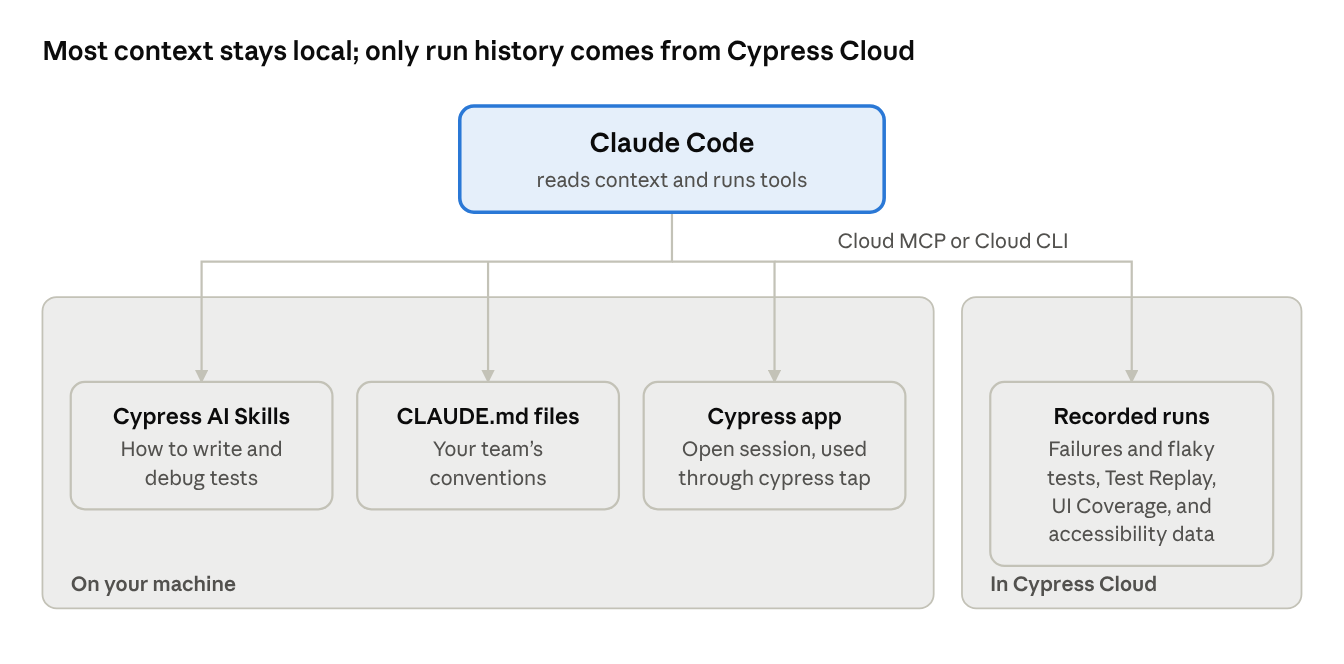
Skills, CLAUDE.md files, and cypress tap all work with what’s on your machine. Only Cloud MCP and the Cloud CLI reach into Cypress Cloud for your recorded runs.
Which setup do you need?
- You want better tests from Claude Code, and you don’t use Cypress Cloud. Install Cypress AI Skills. They’re free and need no account.
- You write tests locally and want Claude Code to check its own work. Install the skills and keep a
cypress opensession running so Claude Code can usecypress tap. This works without Cypress Cloud. - You record runs to Cypress Cloud and spend time investigating flake and failures. Install the skills and connect Cloud MCP or the Cloud CLI. This is where the two work best together.
- You’re rolling this out to a team. Commit the skills and your Cypress CLAUDE.md file to your repository, ask an admin to turn on Cloud MCP, and consider a
projectscope OAuth configuration so everyone starts from the same setup.
Quick start: install the Cypress plugin
The fastest way to set up the skills and Cloud MCP together is the Cypress plugin for Claude Code. It installs all five Cypress AI Skills and configures Cloud MCP in one step. In a Claude Code session, add the Cypress marketplace and install the plugin:
/plugin marketplace add cypress-io/ai-toolkit
/plugin install cypress@cypress
Choose an install scope when Claude Code asks.
- User scope gives you the plugin in every project on your machine.
- Project scope turns it on for everyone who works in the repository, and each person installs it once.
An organization admin still needs to turn on Cloud MCP in Cypress Cloud, and you sign in the first time Claude Code uses it.
If you’d rather install the pieces one at a time, follow the steps below.
Step 1: Install Cypress AI Skills
Cypress AI Skills live in the open source cypress-io/ai-toolkit repository on GitHub. They don’t require a Cypress Cloud account, a subscription, or have usage limits.
There are five skills:
| Skill | What it helps Claude Code do |
|---|---|
cypress-author |
Create, update, and fix end-to-end and component tests. It reads your config, custom commands, and fixtures first, so new tests match the patterns you already use. |
cypress-explain |
Review and explain existing tests. It flags brittle selectors and missing assertions and uses accurate Cypress terminology. |
cypress-tap |
Run and debug tests against a live cypress open session from the command line. Claude Code can verify its own work by reading reporter output and inspecting the app where a test fails. |
cypress-cloud-cli |
Investigate recorded runs through the Cypress Cloud CLI, including test attempts and failures reconstructed from Test Replay data. |
cypress-docs |
Route Cypress questions to the official documentation, with awareness of the Cypress version you use. |
Install all Cypress skills
From the root of your project, run:
npx skills add cypress-io/ai-toolkit
The skills install at the project level, so you can commit them and give everyone on your team the same Cypress context.
Install one Cypress skill
If you only want one skill, name it:
npx skills add https://github.com/cypress-io/ai-toolkit --skill cypress-author
Prefer the GitHub CLI? This works too:
gh skill install cypress-io/ai-toolkit
You can also copy the skill folders into .claude/skills in your project by hand.
Use a skill
Claude Code picks up the right skill when a task matches it. You can also call one directly with a slash command:
/cypress-author Write an end-to-end test for the guest checkout flow. A guest should be able to add a product to the cart, enter a shipping address, and see the order confirmation page.
If you installed the Cypress plugin, include its prefix: /cypress:cypress-author.
Skills won’t turn a vague request into a precise one. The clearer your acceptance criteria, the closer the first draft will be to what you want.
Step 2: Connect Claude Code to Cypress Cloud
Cloud MCP is free on every Cypress Cloud plan, including Starter. It reads recorded run data, so you need to record your runs to Cypress Cloud to use it.
Claude Code can reach your recorded runs in three ways:
- Cypress Cloud connector
- Cloud MCP server
- Cypress Cloud CLI
All three read recorded run data, so you need to record your runs to Cypress Cloud to use them. Cloud MCP and Cypress Cloud CLI are free on every Cypress Cloud plan, including Starter.
Ask an admin to turn on the Cloud MCP integration
An organization admin turns on Cloud MCP from the Integrations page in your Cypress Cloud organization settings. After that, each person connects their own Claude Code.

Option 1: Add the Cypress Cloud connector
If you sign in to Claude Code with your claude.ai account, the connector is the quickest route. You add it once, and it works in Claude Code and the Claude apps.
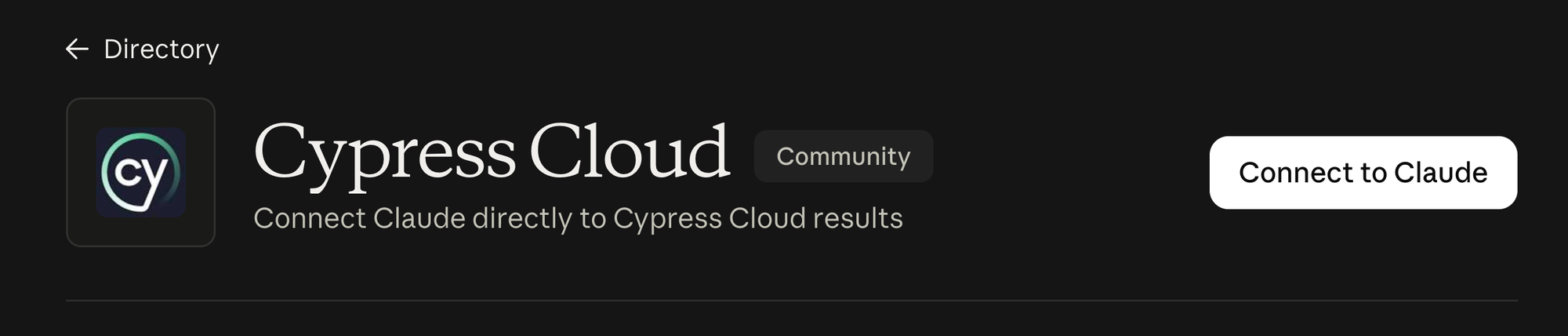
- Open the Cypress Cloud connector in the Claude connectors directory.
- Select Connect to Claude, then sign in to Cypress Cloud when prompted.
- In Claude Code, run
/mcpto confirm the connector is listed.
Option 2: Add the Cloud MCP server from your terminal
Use this route if you sign in to Claude Code another way, such as with an API key, or if you want to control the scope more precisely. If you already added the connector, you can skip it. If you do both, Claude Code uses the server you added here and hides the connector as a duplicate.
We recommend signing in with OAuth. Run this command in your terminal:
claude mcp add cypress-cloud \
  https://mcp.cypress.io/mcp \
  --transport http \
  --scope user
Then start Claude Code with claude and ask it something about Cypress Cloud. Claude Code opens your browser so you can sign in to Cypress Cloud. Your session lasts 30 days, so you won’t need to rotate tokens, and you can revoke access at any time from your Manage Profile page in Cypress Cloud. To check the connection, run /mcp inside Claude Code.
Choose a scope for the Cloud MCP
The --scope flag decides where the connection is available:
--scope usermakes Cloud MCP available in every project on your machine. This is the setting we recommend.--scope locallimits it to the current project.--scope projectsaves the configuration to a.mcp.jsonfile in your repository, so teammates who pull the repository get the same setup. Each person still signs in with their own Cypress Cloud account.
Use a personal access token instead of OAuth
If OAuth doesn’t fit your environment, create an MCP personal access token from your Manage Profile page in Cypress Cloud.
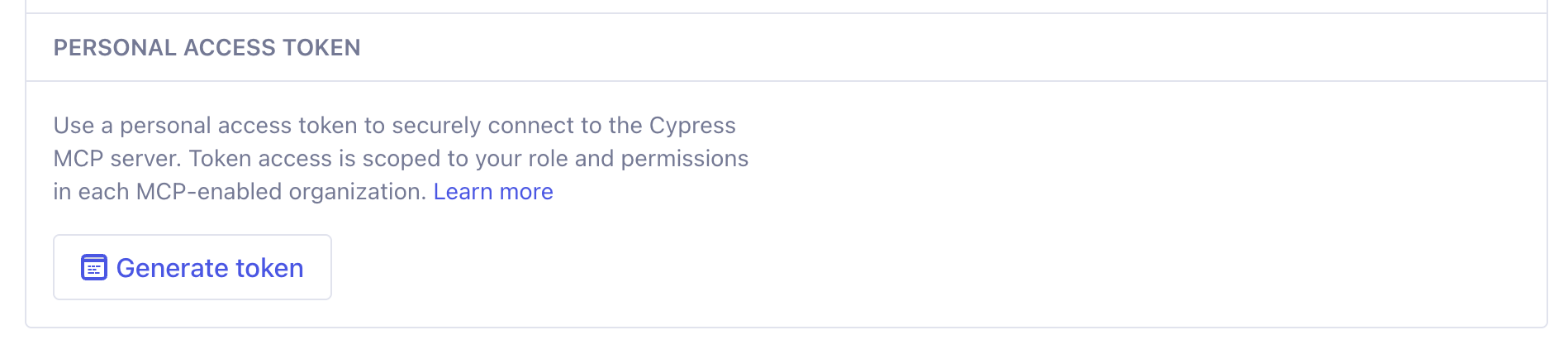
Cypress Cloud shows the token once, so copy it right away. Then add it as a header:
claude mcp add cypress-cloud \
  https://mcp.cypress.io/mcp \
  --transport http \
  --scope user \
  --header "Authorization: Bearer YOUR_MCP_TOKEN"
Keep token-based setups at user or local scope. The project scope writes the configuration to a file in your repository, and a token doesn’t belong there.
Option 3: Use the Cypress Cloud CLI
The Cypress Cloud CLI, cy-cloud, reads the same recorded runs as Cloud MCP, from your terminal. The cypress-cloud-cli skill from Step 1 teaches Claude Code how to use it. The CLI can also download Test Replay data, so Claude Code can step through a test’s timeline and inspect the page at the moment it failed.
Before you start, an organization admin needs to turn on the Cloud CLI integration in Cypress Cloud.

Install the CLI and sign in:
npm install --global @cypress/cloud
cy-cloud login
cy-cloud login opens your browser to sign in. In CI or a Claude Code web session, set CYPRESS_CLOUD_TOKEN to a personal access token instead. It signs you in without writing credentials to disk.
Cloud MCP or the Cloud CLI?
- Cloud MCP is the quickest to set up. It works in the Claude apps and any MCP client, and it has tools for Cypress Accessibility and UI Coverage reports.
- Cloud CLI adds nothing to Claude Code’s context until it runs, and it can dig into Test Replay data in great detail.
- You can use both.
Prompts to try with Cypress Cloud MCP
Here are a few prompts to start with:
Find the latest passing run on main in Cypress Cloud and get the duration of every spec, paging through all results. Then suggest how to balance our specs across parallel CI machines.
For latest run on this branch in Cypress Cloud, pull spec durations and tell me which specs are the slowest. Then break the slowest one down by test so I know whether to split it.List every skipped and pending test in the last run on this branch in Cypress Cloud, grouped by spec.Run, spec, test, and failure data are available on every plan.
Flaky test data, Cypress Accessibility results, and UI Coverage reports are available for plans that have access to those features, so those tools return data when your plan includes them.
List all flaky tests from the last five runs in Cypress Cloud. Do the error messages share any patterns?
Pull the Cypress Accessibility report for the latest run on this branch. List any critical or serious violations, grouped by rule.Using Cypress Cloud, pull the UI Coverage report for the latest run on this branch. What is the overall score, and which untested elements are in the riskiest view?Cloud MCP limits how many tool requests you can make per hour. The Cloud MCP documentation lists the current limit.
Step 3: Let Claude Code check its work with cypress tap
Writing a test is only half the job. The other half is watching it run and seeing what went wrong. cypress tap is a command-line interface (CLI) built into the Cypress App that lets Claude Code work with the Cypress App you already have open. It can run a spec, read the results and the Command Log, go back to the snapshot at any command, and inspect the page’s DOM and accessibility tree. That’s the same context you use when you debug a test yourself.
The cypress-tap skill you installed in Step 1 teaches Claude Code how to use these commands well. For example, it makes sure Claude reads the result of the run it just started, not the previous one.
How it differs from cypress run
cypress run runs your specs headlessly and exits, which is what you want in CI. cypress tap attaches to a running cypress open session instead, so Claude Code can rerun a spec, look at the app at the moment a test failed, and try again without starting over.
Start a cypress tap session
Open Cypress the way you normally would, and leave it running:
npx cypress open --e2e --browser electron
Then start Claude Code from the same project folder. Claude Code finds the open session automatically.
Ask Claude Code to verify a test
Run cypress/e2e/checkout/guest-checkout.cy.ts in my open Cypress session. If a test fails, look at the page at the failing command and fix the selector or assertion.
Here’s what that looks like in practice. Say Claude Code wrote the checkout test with a guessed selector, .submit-btn, and the test fails. Claude Code reads the failing test from the reporter, goes back to the snapshot at the failing command, and inspects the page. It finds that the button is actually [data-cy="checkout-submit"], updates the spec, and runs it again. No guessing, and no copying error messages out of the Cypress app.
You can run the same commands yourself, which is useful when you want to see what Claude Code sees:
npx cypress tap status
npx cypress tap run cypress/e2e/checkout/guest-checkout.cy.ts
npx cypress tap dom --selector "[data-cy=checkout-submit]"
Step 4: give your Cypress tests their own CLAUDE.md
Skills teach Claude Code how Cypress works. A CLAUDE.md file teaches it how your team works. It’s a plain markdown file of instructions that Claude Code reads as context, and you can put one right in your cypress folder so your testing conventions live next to your tests.
Why a separate file? Your root CLAUDE.md probably covers how to build and run the app. Cypress conventions, like which selectors to use or which custom commands exist, matter only when Claude Code works on tests. A separate file keeps the root file short and gives the people who own your test suite a file they can maintain.
The skills already read your config and custom commands. CLAUDE.md is where you put the decisions that aren’t visible in the code, like which of two similar commands your team prefers.
Create a CLAUDE.md file in your cypress folder
Add a CLAUDE.md file to your cypress folder. Here’s an example; swap in your own commands, paths, and rules:
# Cypress tests

## Selectors
- Select elements with `data-cy` attributes, for example `cy.get('[data-cy="checkout-submit"]')`.
- Don't select elements by CSS class or position.

## Custom commands
- Use `cy.login(role)` to sign in. Only tests in `cypress/e2e/auth/` drive the login form directly.
- Use `cy.seedCart(products)` to set up cart state through the API.

## Running tests
- Run one spec with `npx cypress run --spec cypress/e2e/checkout/guest-checkout.cy.ts`.
- Reuse fixtures in `cypress/fixtures` before creating new ones.
Keep it short and specific. Anthropic recommends staying under 200 lines per file, because longer files use more context and Claude Code follows them less consistently.
How Claude Code scopes a CLAUDE.md file to the folder
You don’t need any configuration. Claude Code loads a CLAUDE.md file in a subfolder on demand: when it reads, writes, or edits a file inside cypress/, it adds cypress/CLAUDE.md to its context. In a session where you only work on application code, the file doesn’t load.
Scope Cypress rules by file pattern instead
A folder file only covers files inside that folder. If some of your specs live elsewhere, like component tests next to the components they cover, use a path-scoped rule instead. Create .claude/rules/cypress.md at the root of your project and list the paths it applies to:
---
paths:
  - "cypress/**/*"
  - "src/**/*.cy.{js,ts,jsx,tsx}"
---

# Cypress tests

- Select elements with `data-cy` attributes.
Claude Code loads the rule only when it reads, writes, or edits a file that matches one of the patterns.
Share it with your team
Commit cypress/CLAUDE.md or your rule file so everyone gets the same conventions. For personal notes that shouldn’t be shared, like the port your local server runs on, use a CLAUDE.local.md file at the project root and add it to your .gitignore file.
Put them together: from a CI failure to a verified fix
Say a spec fails on your branch in CI. Instead of opening Cypress Cloud, finding the run, copying the error, and pasting it into a chat, you ask:
The checkout spec failed in Cypress Cloud on my branch in CI. Find out why and fix it.
Here’s what Claude Code can do with all the Cypress connections in place:
- Find the failure. Through Cloud MCP, it pulls the failed test, the error message, the stack trace, and a Test Replay link for the run.
- Understand the test. With
cypress-explain, it reads the spec and identifies the likely cause, such as an assertion that runs before an API response arrives. - Write the fix. With
cypress-author, it updates the test using your existing custom commands and selector conventions. - Verify the fix. With
cypress-tap, it runs the spec against your open Cypress session and reads the results.
You stay in the loop the whole way. Claude Code proposes changes to your local files, and you review them like you’d review a teammate’s pull request. What changes is how much time you spend gathering context before you can make a decision.
What Cypress data Claude Code can and can’t see
Giving an AI assistant access to your test data is a reasonable thing to be careful about, so here’s exactly how Cloud MCP works:
- It’s read-only. Cloud MCP can’t change your tests or delete runs in Cypress Cloud.
- It follows your permissions. Claude Code sees only the projects your Cypress Cloud account can see, based on your existing role in your organization and team.
- We don’t see your conversation. Cypress has no access to your chat history or Claude Code’s context. We receive only the inputs to each tool call, such as a project ID.
- Your test data isn’t used for model training.
- You control the connection. Cloud MCP works only where you configure it, and you can revoke OAuth access at any time from your Manage Profile page.
AI Skills run locally in your project and don’t send data to Cypress Cloud on their own. The cypress-cloud-cli skill reads Cloud data only through the Cloud CLI you authenticate.
Get started
The setup takes a few minutes: one command for the skills and one for Cloud MCP or the Cloud CLI. The Cypress AI Skills documentation, the Cloud MCP documentation, and the Cloud CLI documentation cover every option in detail, and the Claude Code MCP documentation explains how Claude Code manages servers.
To go deeper on CLAUDE.md files and path-scoped rules, see how Claude Code remembers your project.
Frequently asked questions
Do I need Cypress Cloud to use Claude Code with Cypress?
No. Cypress AI Skills and cypress tap work with your local project and your open Cypress session. You need Cypress Cloud only for Cloud MCP and the Cloud CLI, which read your recorded runs.
Is Cloud MCP free?
Yes. Cloud MCP is included on every Cypress Cloud plan, including Starter. Some tools return data only when your plan includes the related feature, such as flaky test detection, Cypress Accessibility, or UI Coverage. Usage limits are subject to change.
Are Cypress AI Skills free?
Yes. They’re open source, and they don’t require a Cypress Cloud account or subscription.
Can Cypress see my Claude Code conversations?
No. Cypress receives only the inputs to each Cloud MCP tool call, such as a project ID. We have no access to your conversation or Claude Code’s context, and your test data isn’t used for model training. Prompts sent directly to the submit_mcp_feedback tool call are sent to our team, so only call this when you have feedback to share with us.
Does this work with Cursor or GitHub Copilot?
Yes. Cypress AI Skills work with AI coding tools that support skills, including Cursor and GitHub Copilot, and Cloud MCP works with any MCP-compatible client. The setup steps differ by tool. Check the setup steps in our documentation.