Introducing Studio AI: Stronger Validation, Less Friction
By Jenna Beckett
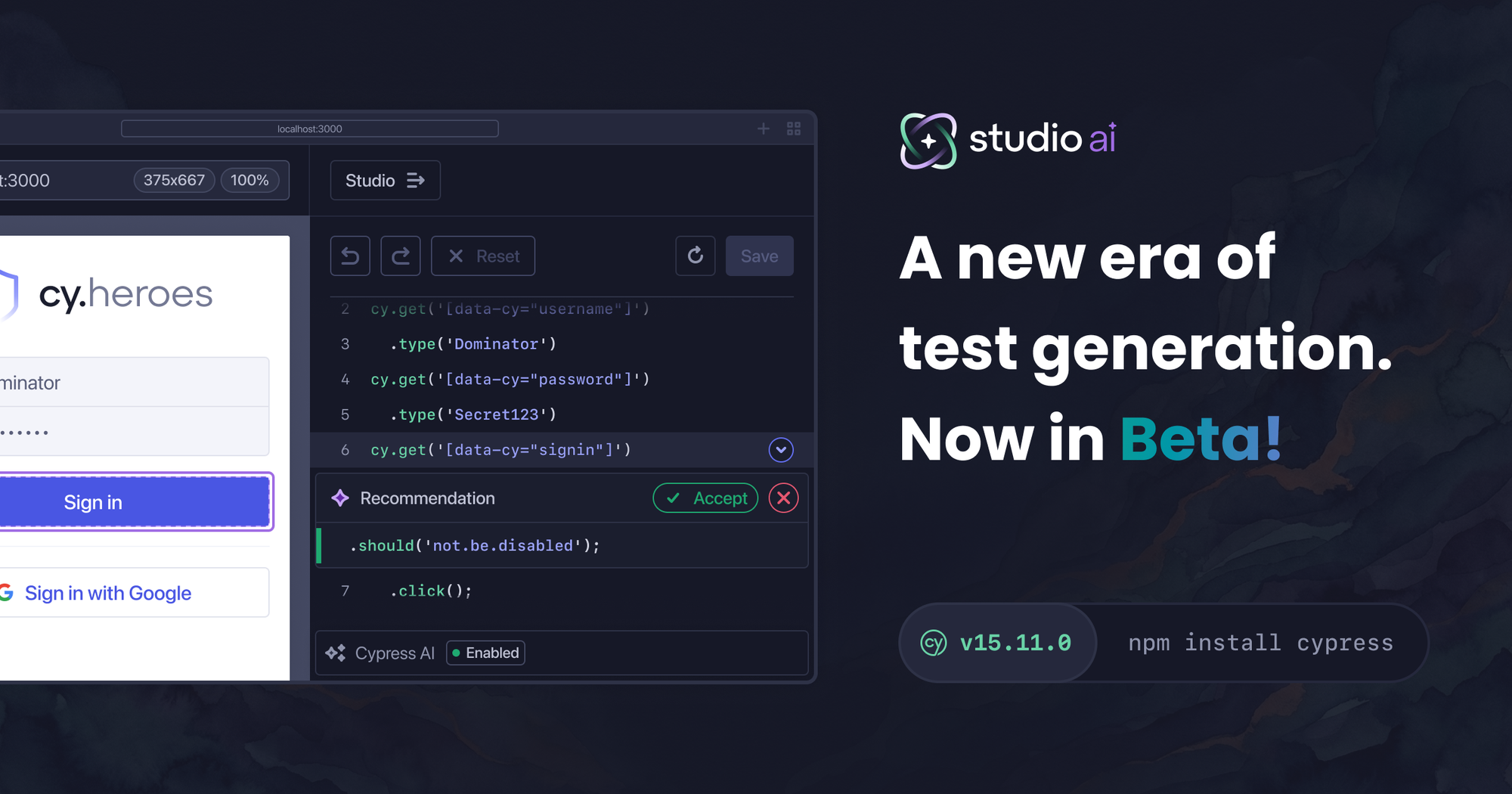
A passing test run does not always equal release confidence.
Confidence comes from knowing your tests validate what users actually experience. Not just that a flow executed, but that the UI state changed appropriately, the right text appeared, and element visibility updated as expected.
This is where friction shows up.
After every meaningful interaction in a test, there's a decision to make. What changed? What should be verified? Those decisions take time. Under pressure, it's easy to write tests that exercise a path without fully validating the outcomes along the way.
The result is a false sense of confidence. Your builds are green, but the coverage is thinner than expected.
Studio AI focuses on that gap. It doesn't attempt to understand your business rules or backend logic. It observes visible UI changes and recommends assertions grounded in what actually changed on the page.
How Studio AI Turns UI Changes Into Assertions
Studio AI extends Cypress Studio, which allows you to build and modify End-to-End tests by recording real interactions in your app. As you record interactions, Studio translates them into Cypress commands in real time.
Studio AI adds another layer by analyzing what changed in the DOM between each recorded step and generating Smart Recommendations based on those changes. Smart Recommendations are AI-generated assertion suggestions that reflect meaningful visible UI differences after an interaction.
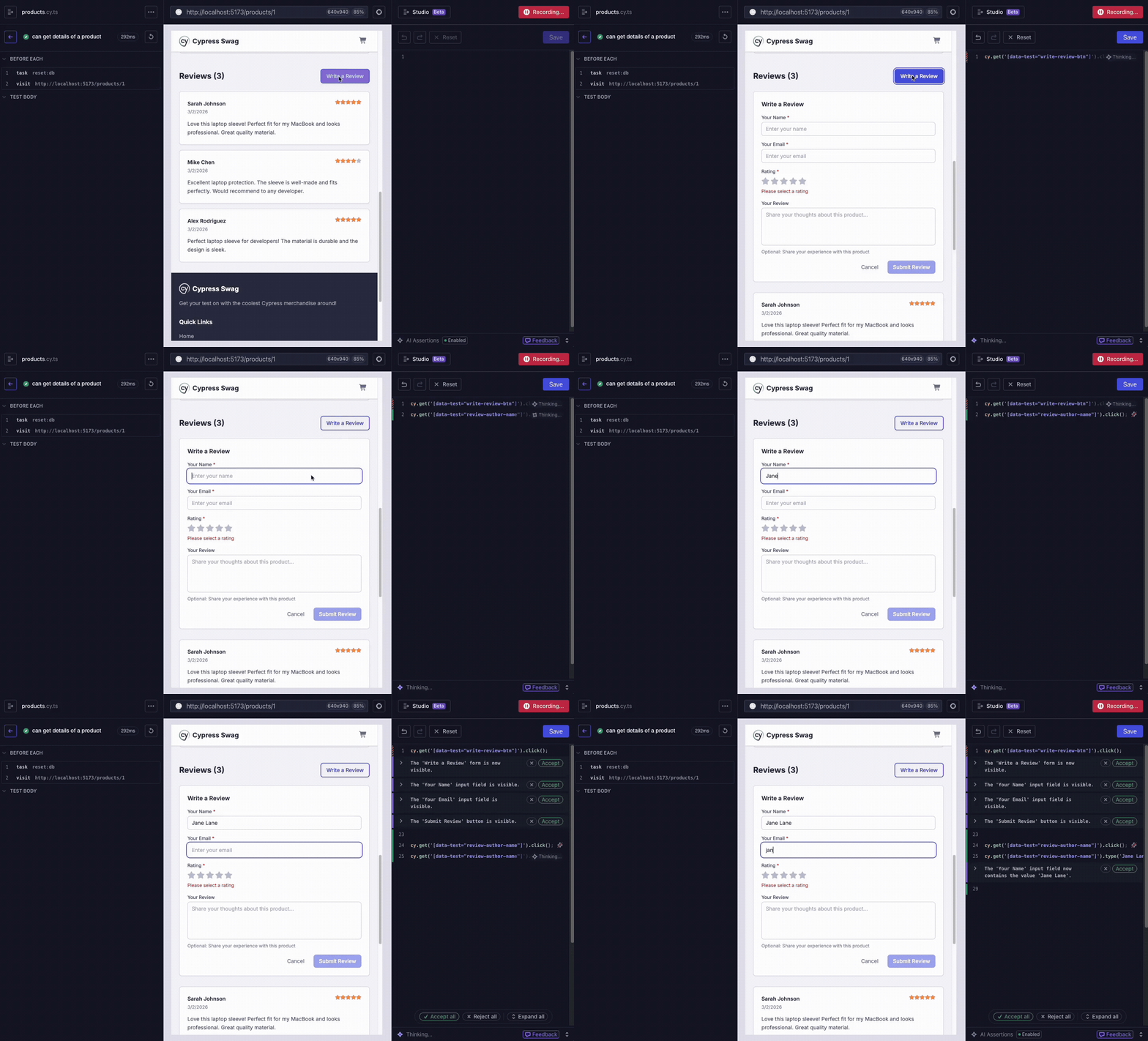
Each Smart Recommendation includes a short explanation of what is being validated and the generated Cypress code. You can individually accept, reject, or modify recommendations, or perform bulk operations when reviewing a series of changes.
Selectors are generated automatically using Cypress’s built-in selector priority strategy. Studio AI favors stable attributes such as data-cy, data-test, data-testid, and other high-priority selectors before falling back to less stable options. This helps ensure that generated assertions are unique, readable and maintainable. If your team uses custom selector conventions, you can configure selector behavior using the Cypress.ElementSelector API.
Studio AI also provides DOM snapshots for each Smart Recommendation. You can see the before and after state of the page and the specific element being asserted. Because recommendations are added to your code immediately, you can save or run the test with Smart Recommendations included before deciding to keep them.
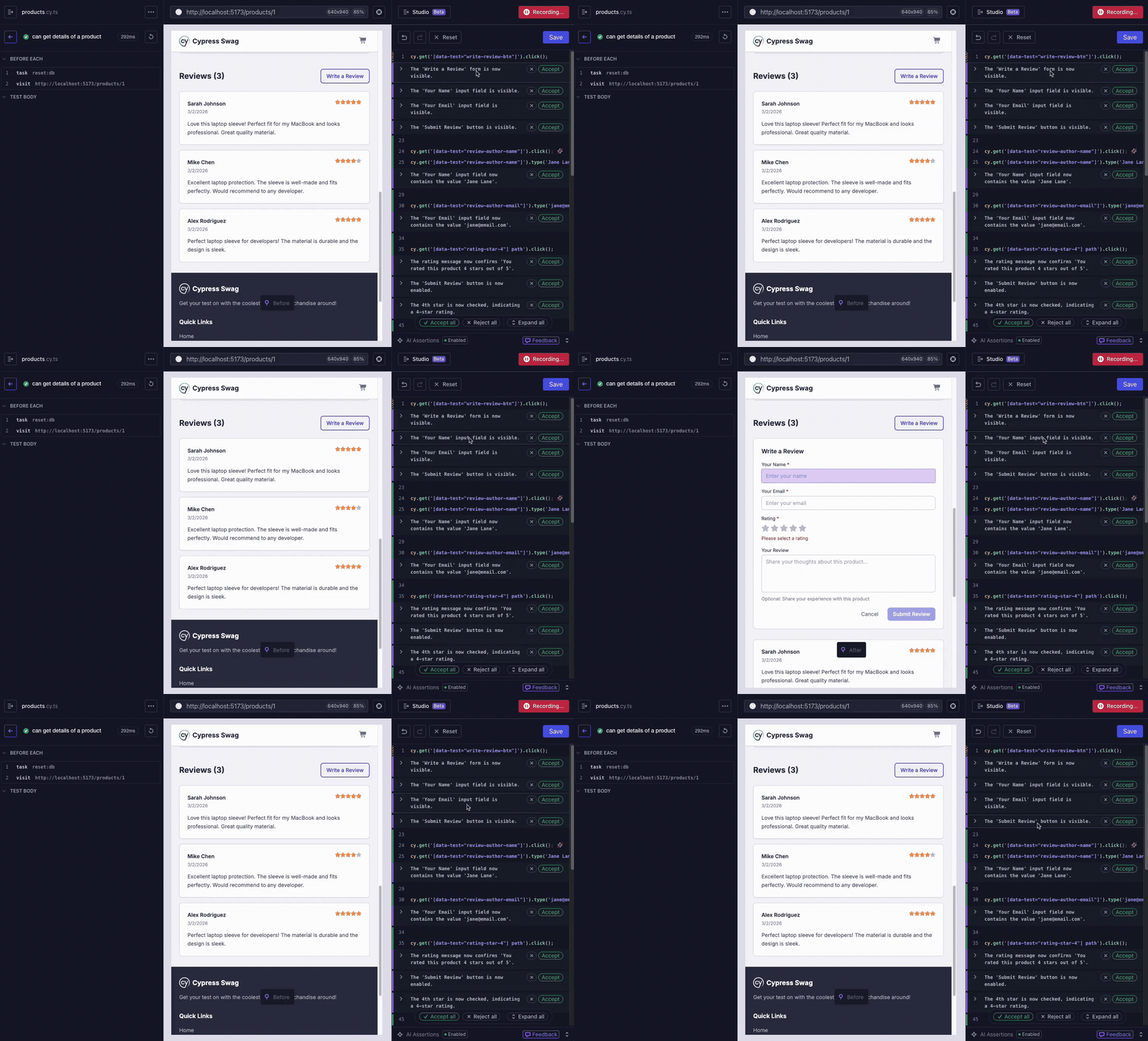
This makes it easier to determine whether a suggested assertion reflects something meaningful for your workflow or simply a change that doesn't require validation.
The Scope of Smart Recommendations
Studio AI compares the DOM state before and after each recorded interaction. When it detects meaningful visible changes, it generates a Smart Recommendation based on those differences. If no meaningful change is found, it clearly indicates that so you're not left guessing.
Smart Recommendations can include assertions for:
- Visibility changes
- Element existence
- Text content updates
- Form input values and selections
- Element attributes such as CSS classes and aria attributes
- URL or page title changes.
These recommendations reflect what changed in the rendered UI.
Studio AI does not have access to your application code, backend rules, or domain logic. It observes visible UI behavior and generates assertions grounded in those changes. Determining whether a change is correct for your business logic still requires intent and review.
Studio AI is also built with guardrails in place. When it reads the DOM to generate Smart Recommendations, values from sensitive field types such as password inputs, credit card fields using standard autocomplete attributes, and hidden inputs are excluded before anything is sent to the AI model. Only structural context is used.
If a test is already failing, recording and Smart Recommendations are disabled. Adding new assertions on top of a failing state can introduce confusion, so Studio requires you to resolve the failure first before continuing.
Get Started With Studio AI
Studio AI requires Cypress version 15.11.0 or later, sourcemaps enabled, and a Cypress Cloud account with a linked project configured in your cypress.config.js|ts file.
To get started:
- Update to the latest version of Cypress.
- Open the Cypress app and sign in to Cypress Cloud.
- Navigate to the spec file you want to work in.
- Start Cypress Studio by creating a new test or editing an existing one by clicking 'Edit in Studio'.
- Record test steps by interacting with your application.
- Review Smart Recommendations as they appear.
- Save and run the test to confirm the assertions behave as expected.
- Accept what fits, reject what doesn't, and edit inline as needed.
Studio AI is available on any Cypress Cloud tier, including free accounts. Smart Recommendation limits are per user, per hour.
During beta, Studio AI is included at no additional cost. Limits and pricing may change, but we are committed to keeping this feature accessible to organizations of all sizes. Any changes will be communicated before taking effect.
Using Cypress Cloud connects Studio AI to your broader testing workflow. Linking projects enables visibility into how tests are authored, reviewed, and scaled across teams. Studio AI builds on that connected foundation, helping teams establish consistent validation practices as their test suites grow.
Full setup instructions are available in the Studio AI documentation.
Faster Test Creation, Fewer Missed Validations
Studio AI does not redefine strong testing. It makes it easier to practice it consistently.
When it becomes easier to turn UI changes into meaningful assertions, validation depth increases. And when validation depth increases, release confidence becomes more predictable.
Update to the latest version of Cypress, open Studio, and try it in your workflow. Then tell us what works and what needs improvement. Your feedback will shape where we take this next.
Want to learn more about other AI features in Cypress? We have a new guide that outlines all that is available.